

How to improve FPS in Red Dead Redemption 2 (PC)
Red Dead Redemption 2 is generally well optimized for PC after the initial patches — but it offers over 40 individual graphics settings and the difference between the right and wrong configuration is enormous: from 45 to 75 FPS on the same GPU. This guide covers the settings with the best FPS/visual quality ratio and the most important decision in the game: Vulkan vs DirectX 12.
This is what you'd gain with a AMD RX 6600
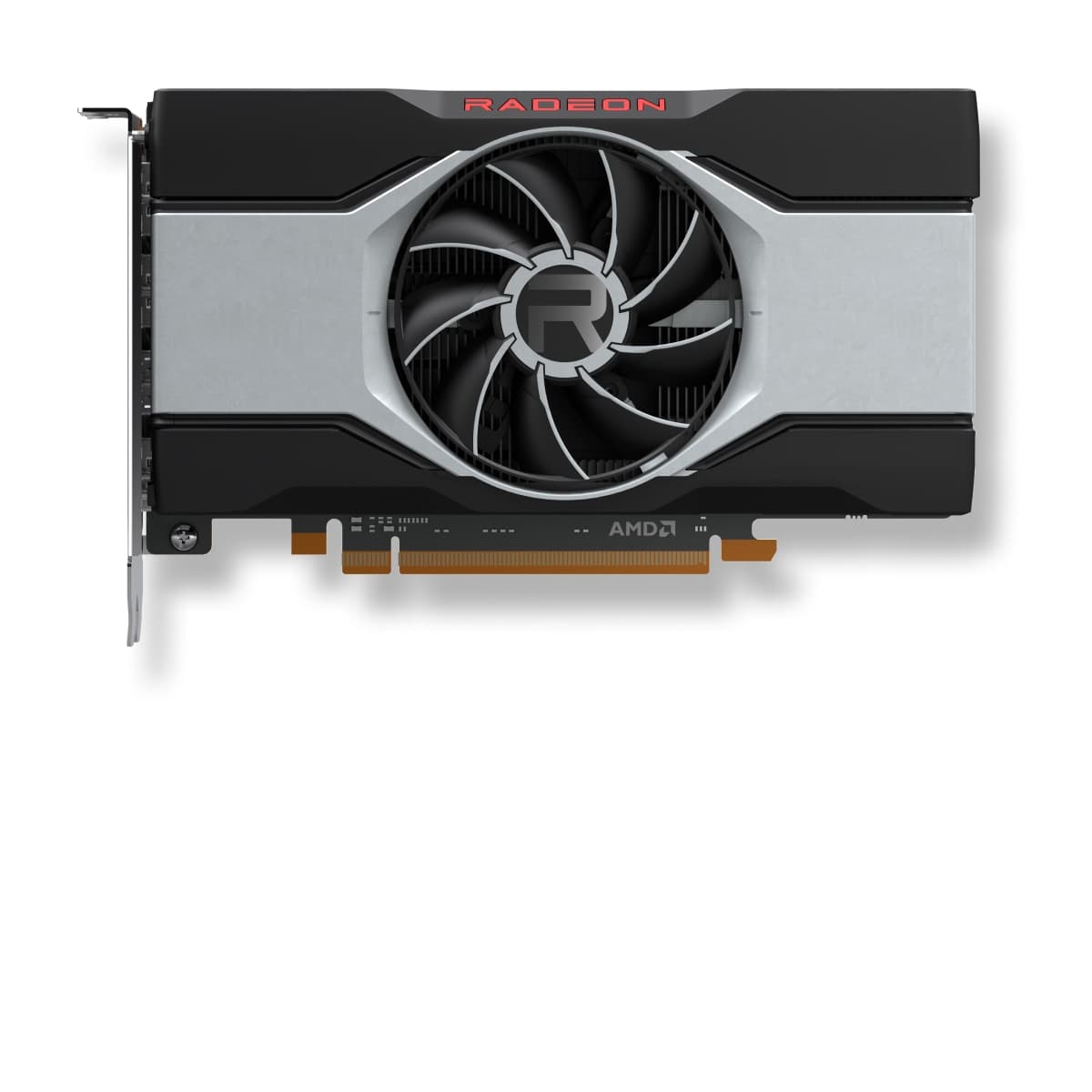
Want the RX 6600 at the best price?
Check the current price on Amazon.
Calculations based on our FPS model combined with the % gain of each setting (measured in public benchmarks).
1. Quick wins (no visual loss)
Start here. Each one adds a little, but together they give +10% free FPS.
Motion Blur
Rockstar's motion blur is aggressive. Off cleans up the image and frees a few GPU points.
Reflection MSAA
MSAA applied to reflections is one of the most expensive and least visible settings in the game. Off is the safest choice.
Particle Quality
Particles at Medium look practically the same in gameplay. Small but consistent savings.
TAA Sharpening
No FPS cost, but compensates for TAA blur. Increase to your taste (doesn't affect performance).
2. Medium impact settings
Here's where most of the FPS is. Minor visual impact, major performance impact.
Volumetric Quality
The biggest change in the game. Volumetrics on Ultra is brutal in foggy/snowy areas. Medium maintains the atmosphere with almost all FPS.
Reflection Quality
Reflections at High are indistinguishable from Ultra during normal gameplay. One of the best optimizations.
Shadow Quality
The Ultra→High difference in shadows only shows in static screenshots. Recommended change.
Far Shadow Quality
Distant shadows at Medium go unnoticed in-game — distance conceals them.
SSAO
Ambient occlusion at Medium maintains visual depth at lower cost.
Water Quality
RDR2's water is very well rendered but Ultra only shows in cutscenes with water up close.
3. Upscaling (DLSS / FSR / XeSS)
The biggest gain in the game. Compatible with almost any modern GPU.
DLSS Quality (NVIDIA RTX)
+25% FPSDLSS implementation in RDR2 is one of the oldest and shows shimmering in foliage. It works, but TAA medium native sometimes looks better if your hardware can handle it.
FSR 2 Quality
+20% FPSAvailable on any GPU. Similar to DLSS in gain, similar limitations with vegetation.
TAA Medium (native)
+0% FPSTAA Medium at native resolution is the best visual option if your hardware can handle it. TAA High is very expensive.
4. Tips by GPU
NVIDIA
- •USE VULKAN, not DirectX 12. Vulkan gives ~5-10% more FPS and eliminates the memory leaks that DX12 suffers in long sessions.
- •In the NVIDIA panel, enable 'Threaded Optimization' and 'Triple Buffering' if you play with V-Sync.
- •DLSS works but the game's TAA is excellent: try both and compare in areas with foliage.
AMD
- •Vulkan also mandatory. Better performance and stability than DX12 in RDR2.
- •Enable 'Radeon Anti-Lag' when playing with FSR — reduces input lag.
- •Smart Access Memory (SAM) gives +3-5% in RDR2, enable it in BIOS.
Intel
- •RDR2 runs decently on Arc B-series but drivers are key — use the most recent ones.
- •XeSS is not officially integrated in RDR2; use FSR 2 instead.
- •Vulkan generally works better than DX12 on Arc too.
5. Known game issues
DX12 suffers memory leaks in long sessions
After 2-3 hours with DX12, RAM spikes and performance drops. The universal fix is to switch to Vulkan in Settings → Graphics → API.
Estado: Not fixed (port limitation)
Stuttering in Saint Denis
The game's densest city can cause FPS drops due to CPU bottleneck. Reducing 'Geometry Level of Detail' by one step helps significantly.
Shimmering in foliage with DLSS/FSR
Vegetation flickers with upscaling active. If it bothers you a lot, use TAA Medium native instead of DLSS/FSR.
6. Frequently asked questions
Can my RX 6600 run RDR2?▾
Vulkan or DirectX 12?▾
Does it have Ray Tracing?▾
How much VRAM do I need?▾
Want to know exactly how many FPS YOUR PC will get?
Enter your GPU and CPU in our calculator and measure the real impact of each setting.
Calculate FPS for Red Dead Redemption 2 →Calculations based on consensus of technical sources and our own FPS model. More about our methodology →