

How to improve FPS in Dragon's Dogma 2 (PC)
Dragon's Dogma 2 runs on RE Engine, the same engine behind Resident Evil 4 Remake and Street Fighter 6, but here Capcom pushes it to simulate the AI of dozens of NPCs and Pawns in real time inside the city of Vernworth. The result is a game that flies in open exteriors with almost any modern GPU, but drops to its knees at the CPU the moment you enter dense urban areas. Before touching anything, understand that here the limit isn't your graphics card.
This is what you'd gain with a NVIDIA RTX 4060 Ti
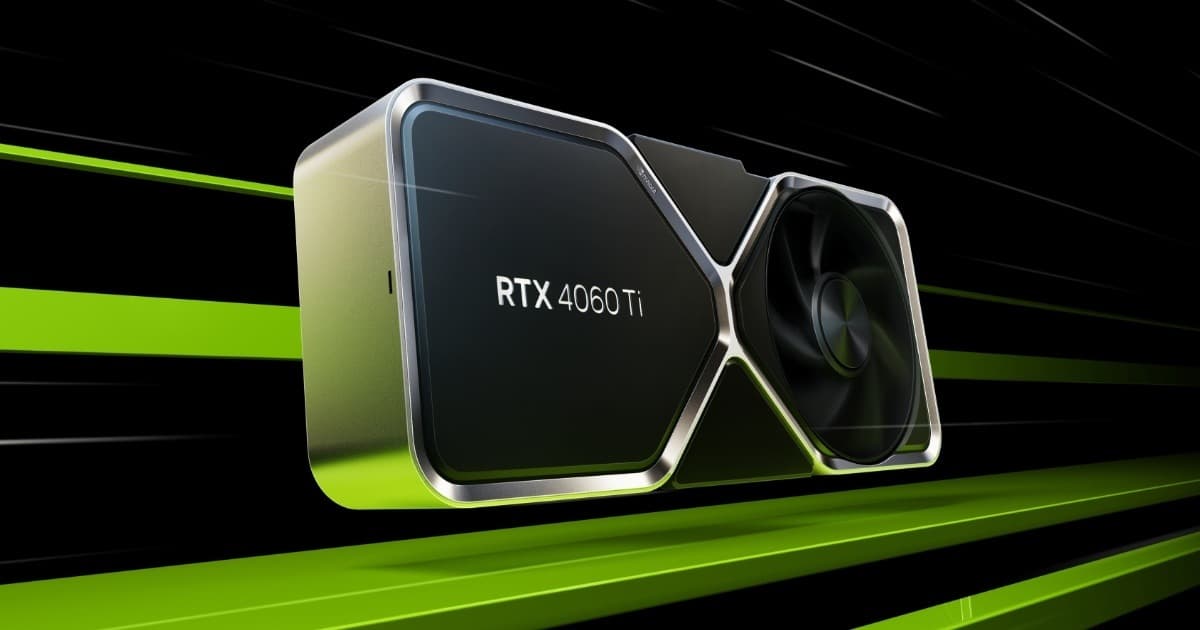
Want the RTX 4060 Ti at the best price?
Check the current price on Amazon.
Calculations based on our FPS model combined with the % gain of each setting (measured in public benchmarks).
1. Quick wins (no visual loss)
Start here. Each one adds a little, but together they give +13% free FPS.
Texture Quality
Ultra spikes VRAM consumption far above what it adds visually versus High, especially on 8-12GB cards. If you notice stutter or sharp drops outside Vernworth, this is the first suspect.
Ambient Occlusion
RE Engine's SSAO on Ultra adds notable GPU load indoors and in dungeons without adding much extra definition to contact shading.
Volumetric Fog Quality
Volumetric fog in forests and dungeons is expensive to render on Ultra. Dropping to Medium frees up some GPU without it being especially noticeable except in very wooded areas at dawn/dusk.
Motion Blur
Adds little real performance but improves perceived sharpness during combat and camera movement, especially if you use upscaling.
Depth of Field
Depth-of-field blur in dialogue and cutscenes has a small but constant cost; disabling it also stops the HUD and nearby terrain from blurring at certain angles.
2. Medium impact settings
Here's where most of the FPS is. Minor visual impact, major performance impact.
Shadow Quality
Dynamic shadows from NPCs, Pawns, and monsters in Vernworth add load to both the GPU and, indirectly, the CPU by calculating more shadow-casting objects. Dropping to Medium helps especially in the city.
Screen Space Reflections
Reflections in puddles, rivers, and wet surfaces around and in Vernworth carry a considerable GPU cost on Ultra. Medium keeps the overall effect while losing definition only in the most distant reflections.
Global Illumination
RE Engine's global illumination is one of the game's most expensive settings and responsible for much of the dungeons' atmospheric look. Lowering it has a real visual impact, but it's one of the few settings that actually frees up significant GPU (it doesn't help the CPU bottleneck in the city).
Level of Detail (LOD)
Controls the distance at which models and textures load at full detail. Lowering it helps somewhat in open exteriors like the Vermund plains, but doesn't fix the Vernworth bottleneck because there the problem is AI, not geometry rendering.
Character Population Density
The setting with the biggest real impact on the underlying problem: it reduces how many NPCs and Pawns the game simulates simultaneously in Vernworth. The visual impact is notable (the city feels less alive), but it's the only option that directly attacks the cause of the CPU bottleneck.
3. Upscaling (DLSS / FSR / XeSS)
The biggest gain in the game. Compatible with almost any modern GPU.
DLSS (NVIDIA)
+25% FPSDragon's Dogma 2 has had good DLSS support since launch, with solid image quality in Quality mode. Since the game is usually CPU-limited in the city, DLSS mainly helps in exteriors and fights with lots of enemies on screen, where there's actual GPU headroom to free up.
FSR (AMD)
+20% FPSFSR 2 works reasonably well but shows a bit more ghosting on characters' and Pawns' hair during fast combat movement than its DLSS counterpart. Still a clear improvement on AMD GPUs or systems without an NVIDIA card.
XeSS (Intel)
+18% FPSAvailable and functional, with results somewhat behind DLSS in distant sharpness, but perfectly playable in Quality/Balanced mode on Intel Arc GPUs or as an alternative on more modest AMD/NVIDIA systems.
Frame Generation (DLSS 3 / FSR 3)
+40% FPSHere you need to be careful: since the game is usually CPU-limited (not GPU-limited) in Vernworth, Frame Generation creates intermediate frames from an already-low base and can introduce more noticeable latency and input lag without fixing the underlying feel of "hitching." It's more useful in exteriors with an already decent base FPS than in the city itself.
4. Tips by GPU
NVIDIA
- •Always use the latest Game Ready drivers; Capcom and NVIDIA have released several joint patches fixing DDG2 shader-compilation stutter.
- •Enable Resizable BAR from the BIOS and check it's recognized in the NVIDIA panel; on RE Engine it delivers a measurable improvement in 1% lows.
- •If you have an RTX 40 series card, prioritize DLSS over native resolution + FSR: motion image quality is notably superior in the Vermund plains' vegetation-heavy scenes.
AMD
- •Enable Smart Access Memory (Resizable BAR equivalent) from the BIOS; combined with Ryzen CPUs it helps overall framerate somewhat, though it doesn't fix the Vernworth ceiling.
- •On RDNA2/RDNA3 GPUs, lower Global Illumination to Medium before other settings: it's the biggest VRAM and bandwidth consumer on this architecture.
- •Update to the latest Adrenalin drivers with a Dragon's Dogma 2-specific profile; older versions show more stutter entering and leaving Vernworth.
Sistema
- •Install the game on an SSD (NVMe preferably): texture and NPC streaming loads entering the city are notably slower on an HDD, worsening the hitches.
- •Close third-party overlays (Discord, GeForce Experience, RTSS) if you notice extra micro-stutter; RE Engine is sensitive to external rendering hooks.
- •If your CPU has few cores/threads (4c/8t or less), it's the component to prioritize in a future upgrade: Dragon's Dogma 2 is one of the few current games where upgrading the CPU pays off more than upgrading the GPU for the real gameplay experience.
5. Known game issues
FPS drop in Vernworth regardless of GPU
The game's most documented issue: in the capital, framerate drops to 30-40 fps with any graphics card, including top-end ones, while GPU usage stays low. It's a design limitation (per-NPC AI simulation) rather than a one-off bug, and Capcom has partially mitigated but not eliminated it in post-launch patches.
Estado: Post-launch patches (partial improvement, not fully resolved)
Shader compilation stutter on first launch
When starting the game for the first time (or after changing GPU/drivers), Dragon's Dogma 2 compiles shaders on the fly, causing noticeable hitches during the first few hours, especially entering new areas or starting combat.
Estado: Improved in April-May 2024 patches with more aggressive precompilation
Unbalanced CPU usage across cores
RE Engine doesn't distribute Pawn and NPC AI load well across all available cores, concentrating most of the work on one or two threads. This explains why CPUs with more cores don't scale as well as you'd expect, and why single-core performance remains the most determining factor in the city.
6. Frequently asked questions
Why does my framerate drop so much in Vernworth even with a powerful GPU?▾
Which setting should I touch specifically for more FPS in the city?▾
Is it worth enabling DLSS or FSR in this game?▾
Is it better to invest in more CPU or more GPU for Dragon's Dogma 2?▾
Want to know exactly how many FPS YOUR PC will get?
Enter your GPU and CPU in our calculator and measure the real impact of each setting.
Calculate FPS for Dragon's Dogma 2 →Calculations based on consensus of technical sources and our own FPS model. More about our methodology →