

How to improve FPS in Death Stranding 2: On the Beach (PC)
Death Stranding 2: On the Beach arrives on PC nine months after its PS5 launch, with the port handled by Nixxes, the studio behind Spider-Man, Tomb Raider, and Deus Ex ports. It runs on an updated version of the Decima engine (the same one behind Horizon Forbidden West) and inherits its reputation for scaling well on modest hardware. Sam Porter Bridges' open world is denser than in the first game, with dynamic weather (rain, snow, wind that erodes terrain), day/night cycles, and cargo-hauling zones that demand constant smoothness over uneven ground. The good news: there's no shader compilation stutter during gameplay and load times are just a few seconds.
This is what you'd gain with a NVIDIA RTX 4060 Ti
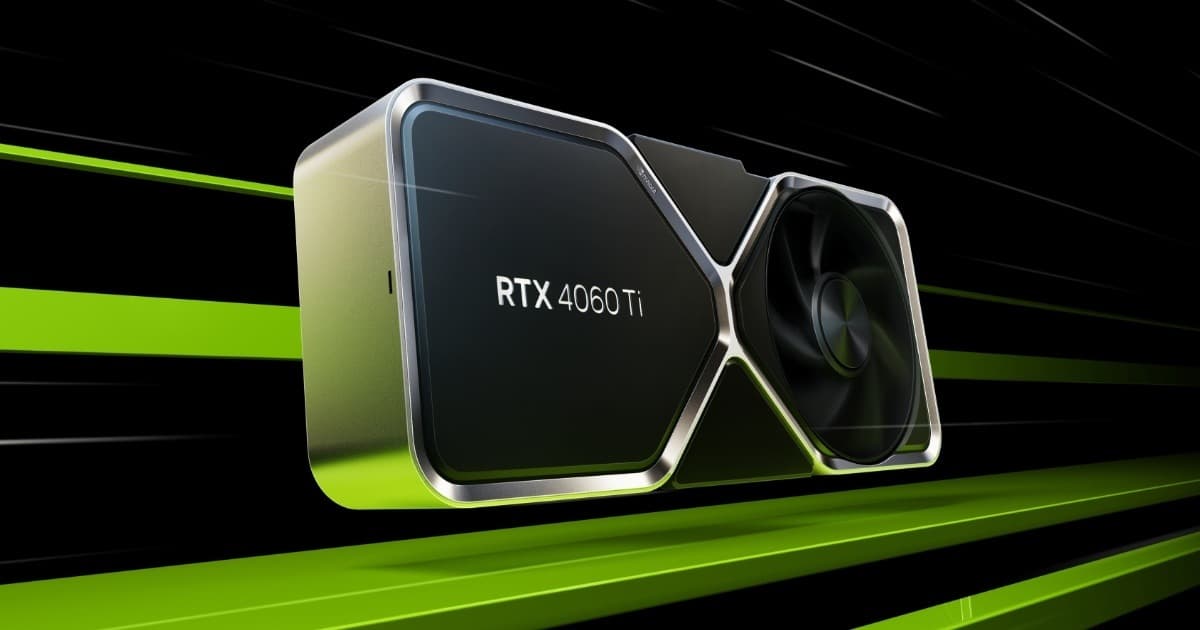
Want the RTX 4060 Ti at the best price?
Check the current price on Amazon.
Calculations based on our FPS model combined with the % gain of each setting (measured in public benchmarks).
1. Quick wins (no visual loss)
Start here. Each one adds a little, but together they give +63% free FPS.
Overall Graphics Preset
Dropping from the "Very High" preset to "High" is barely noticeable in visual quality but frees up a considerable FPS margin. Going from "Very High" to "Portable" (the lowest) gives up to 37% more performance with gradual, contained visual degradation.
Ray Tracing (reflections and ambient occlusion)
The RT for reflections and ambient occlusion is toggled separately from the main preset and adds roughly 33% cost. The visual improvement is subtle (there's no path tracing, RT global illumination, or RT shadows like in UE5 games), so it's not worth it on mid-range GPUs.
Shadows (Quality and Resolution)
Dynamic shadows across sprawling exteriors are among the biggest GPU loads. Dropping from "Very High" to "Medium" is barely noticeable except in close-ups, and frees up FPS in open terrain areas.
Volumetric Lighting Quality
Volumetric lighting (fog, light shafts between clouds) is costly in scenes with dynamic weather. Dropping it to Medium keeps the game's atmosphere without penalizing framerate as much in foggy or heavy-rain zones.
Motion Blur Strength
Motion blur has minimal performance cost but can be fully disabled by setting the slider to 0, which also improves perceived sharpness during high-speed cargo hauling.
2. Medium impact settings
Here's where most of the FPS is. Minor visual impact, major performance impact.
Terrain Quality
Terrain quality affects detail density in the extensive mountainous and snowy zones. Dropping from Very High to High reduces GPU load without it showing much unless you're staring closely at the ground.
Cloud Quality
Decima's dynamic cloud system looks great but is demanding at higher altitudes. Medium keeps weather variety at a noticeably lower rendering cost.
Reflections (SSR)
Screen-space reflections (puddles, rivers, surfaces wet from dynamic rain) have a notable cost in coastal and humid zones. Medium preserves the effect without the cost of maximum quality.
Translucency Quality
Affects semi-transparent materials (light fog, smoke, certain fabrics). Its visual impact is subtle, so dropping it to Medium is barely noticeable during normal play.
Screen Space Shadows
Adds extra shadow contact detail on small environment objects. It's one of the most sacrificeable settings when chasing FPS stability in heavily vegetated terrain.
3. Upscaling (DLSS / FSR / XeSS)
The biggest gain in the game. Compatible with almost any modern GPU.
NVIDIA DLSS 4 (Quality + Multi Frame Generation)
+55% FPSDLSS 4 with multi frame generation (up to 4x) is the most powerful option on RTX 40/50 series GPUs. In Quality mode the visual impact is practically nil and the FPS jump is notable, especially at 1440p and 4K.
AMD FSR 4
+40% FPSNative FSR 4 works well on recent AMD cards (RX 9070 XT and above perform very competitively in this game, on par with the RTX 5080 in raster). In Quality, sharpness loss is minimal.
Intel XeSS (with Frame Generation 2x)
+35% FPSXeSS with 2x frame generation is the recommended option for Intel Arc GPUs and as an alternative on cards without FSR 4 or DLSS support. Solid image quality in Quality mode.
PICO (Decima's own upscaler)
+20% FPSThe engine's native upscaler is a decent alternative when you don't want to rely on DLSS/FSR/XeSS. In "Native AA" mode it renders at native resolution with just anti-aliasing, useful as a maximum-quality reference without real upscaling.
4. Tips by GPU
NVIDIA
- •Use the latest WHQL driver (595.xx or newer) to ensure full DLSS 4 and Multi Frame Generation support.
- •Enable Resizable BAR in the BIOS: it was enabled on every card in the reference tests and adds a few extra points of performance in the open world.
- •On 8GB VRAM GPUs (like the RTX 4060), avoid the Very High preset at 1440p/4K and stay on Medium/High to not push close to the memory limit.
AMD
- •Update to the newest Radeon drivers (26.x); RX 9070 XT and similar cards perform especially competitively in this title compared to usual.
- •Enable Resizable BAR (Smart Access Memory) in the BIOS — it's supported and recommended across the entire RX 6000 lineup and up.
- •FSR 4 is only available on RDNA 4 (RX 9000); on RDNA 2/3 cards, use FSR 3 or the engine's native PICO upscaler.
Intel
- •Install the latest Arc drivers (101.88xx) for the best XeSS 2 and Frame Generation support.
- •Enable Resizable BAR: on Arc GPUs it's practically mandatory for correct performance in open-world games.
- •If you're using an Arc B-series card, XeSS with 2x Frame Generation is the recommended combo to reach stable 60 FPS at 1440p.
Sistema
- •The game doesn't suffer shader compilation stutter during gameplay and load times are very fast (~10s to menu, ~3s to gameplay), so an NVMe SSD isn't essential but is recommended.
- •VRAM: usage sits around 9GB at max 1080p, 10GB at 1440p, and just under 11GB at 4K; with Low settings it drops to 6-7GB, so 8GB cards are covered as long as you avoid the highest preset at higher resolutions.
- •If you use a 16:10 monitor (2560×1600 and similar), note the game doesn't support it natively and black bars will appear; 21:9 and 32:9 ultrawide are supported without issue.
5. Known game issues
Slight stutter during cutscenes
There's a small perceptible hitch in some cutscenes that isn't related to shader compilation. It's not severe or game-breaking, but it's a bit annoying since cutscenes are locked at a fixed 60 FPS regardless of your hardware or settings.
No native 16:10 support
16:10 resolutions (like 2560×1600) aren't natively supported; the game renders at 16:9 and adds black bars top and bottom, even outside of cutscenes.
Upscaling can't be fully disabled
There's no direct "no upscaling" option; the closest option is setting PICO to "Native AA" mode, which renders at native resolution while applying only anti-aliasing.
6. Frequently asked questions
Do I need to enable Ray Tracing in Death Stranding 2 on PC?▾
What GPU do I need for stable 60 FPS at 1080p, 1440p, and 4K?▾
Does the game suffer shader compilation stutter like other recent ports?▾
How much VRAM do I need to play without issues?▾
Want to know exactly how many FPS YOUR PC will get?
Enter your GPU and CPU in our calculator and measure the real impact of each setting.
Calculate FPS for Death Stranding 2: On the Beach →Calculations based on consensus of technical sources and our own FPS model. More about our methodology →