

How to improve FPS in Battlefield 6 (PC)
Battlefield 6 runs on a new iteration of the Frostbite engine built for matches of up to 64 players with environmental destruction and very open maps. Unlike a corridor shooter, the CPU here genuinely suffers in large fights with vehicles, smoke, and structures collapsing simultaneously, so tweaking graphics alone isn't enough: you also need to watch texture streaming and 1% low stability, which is what you actually feel in a mid-range firefight.
This is what you'd gain with a NVIDIA RTX 4060 Ti
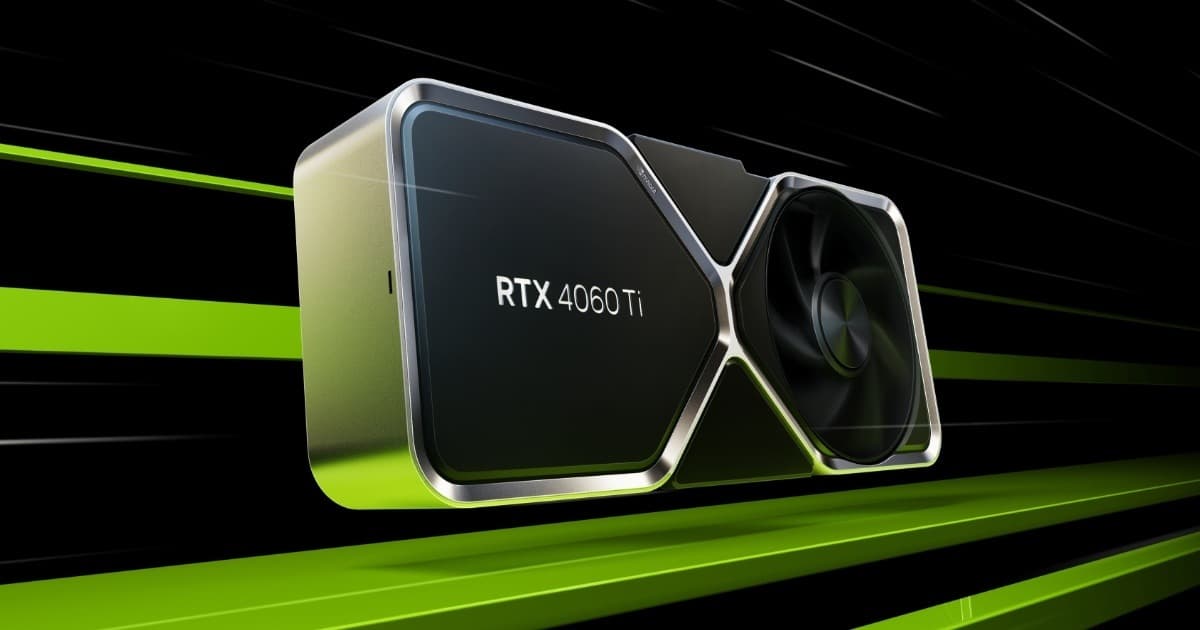
Want the RTX 4060 Ti at the best price?
Check the current price on Amazon.
Calculations based on our FPS model combined with the % gain of each setting (measured in public benchmarks).
1. Quick wins (no visual loss)
Start here. Each one adds a little, but together they give +20% free FPS.
Mesh Quality
Controls the geometric detail of rubble and destructible structures. On High/Ultra it spikes the polygon count exactly when you need performance most: in the middle of mass destruction. Dropping it to Medium is barely noticeable at normal firefight range.
Terrain Quality
Affects terrain mesh resolution and tessellation detail in open areas. On large maps with a lot of visible terrain the cost is significant; on Medium you keep enough terrain readability to navigate while freeing up a good amount of GPU.
Motion Blur
Motion blur adds nothing in a competitive shooter: it makes it harder to track enemies running or crossing the screen and adds unnecessary post-processing load. Small but free gain.
Depth of Field
Blurs the background in cutscenes and certain camera angles. In multiplayer it only takes away clarity for spotting enemy silhouettes at medium-long range, with zero competitive upside.
Shadow Quality
Dynamic shadows from vegetation, vehicles, and destroyed structures are among the most expensive parts of the Frostbite engine in scenes with a lot of moving geometry. Medium keeps enough contrast to read the environment without hitting 1% low as hard.
2. Medium impact settings
Here's where most of the FPS is. Minor visual impact, major performance impact.
Texture Quality
With less than 8GB of VRAM, dropping from Ultra to High avoids micro-stutter from texture streaming when crossing map areas quickly in a vehicle. With 8GB or more the FPS impact is minimal, so you can leave it on High/Ultra without a meaningful penalty.
Lighting / Global Illumination
Dynamic global illumination reacts to explosions, smoke, and destruction in real time, making it one of the most expensive rendering systems in large fights. Dropping it to Medium noticeably reduces frametime spikes during assaults with multiple simultaneous explosions.
Effects Quality
Smoke, destruction dust, and gunfire effects saturate the GPU in 64-player fights with several vehicles and active artillery at once. Lowering this setting returns the most 1% low in the game's most chaotic scenes.
Reflection Quality / SSR
Full-screen reflections (water, glass, metallic surfaces) have a disproportionate GPU cost relative to what they add in combat. On maps with water or urban zones full of glass, lowering this is one of the most cost-effective settings.
Foliage/View Distance
On open maps with dense vegetation, rendering grass and bushes at long range consumes GPU without any real competitive advantage. Dropping it to Medium keeps enough coverage for close-range stealth while freeing up frames in mid-range fights.
3. Upscaling (DLSS / FSR / XeSS)
The biggest gain in the game. Compatible with almost any modern GPU.
DLSS 3 (NVIDIA, includes Frame Generation on RTX 40/50)
+45% FPSThe recommended option on NVIDIA RTX GPUs. In 'Balanced' or 'Performance' quality it delivers the biggest FPS jump without degrading sharpness too much at 1440p/4K. In a competitive shooter you should prioritize real latency: pair it with Reflex and skip Frame Gen if input lag matters more to you than the on-screen number.
FSR 3 (AMD, compatible with any recent GPU)
+35% FPSA good alternative on AMD cards or on NVIDIA generations prior to RTX 40. 'Quality' mode is the recommended sweet spot; on 'Performance' the ghosting on smoke and vegetation becomes somewhat more visible.
XeSS (Intel Arc and compatible on other GPUs)
+30% FPSAvailable as a cross-platform alternative, especially relevant on Intel Arc GPUs where it runs in its higher-quality XMX mode. On non-Intel GPUs performance is slightly below DLSS/FSR but it's still a valid option to gain some FPS headroom.
Render Resolution Scale
+20% FPSManually lowering render resolution (say, to 80-85%) without AI upscaling is the simplest option on entry-level GPUs or without modern DLSS/FSR/XeSS support, with a noticeable but manageable sharpness cost.
4. Tips by GPU
NVIDIA
- •Enable NVIDIA Reflex to reduce input lag in close-to-mid-range fights; in a competitive shooter it matters more than a few extra FPS from Frame Generation.
- •Update to the Game Ready drivers specific to the game's launch: the first few weeks usually bring notable stability and performance patches on Frostbite.
- •On RTX 40/50 with tight VRAM (8GB), watch out for Ultra textures combined with 4K resolution: it's the scenario most prone to stuttering from lack of memory.
AMD
- •Use Radeon Anti-Lag (or Anti-Lag+ if your GPU supports it) to offset the latency added by FSR 3 in fast fights.
- •Check that Smart Access Memory (SAM/Resizable BAR) is enabled in BIOS: on Frostbite with large-scale destruction, a consistent 1% low improvement has been reported with this feature enabled.
- •Update to the latest launch Adrenalin drivers; RDNA 3 cards have received several optimization patches specific to large-scale Frostbite shooters.
Sistema
- •This game leans on the CPU more than a typical shooter due to the player count and simultaneous destruction physics: prioritize fast cores over many slow cores if you have to choose.
- •Install the game on an SSD (NVMe preferred): texture and geometry streaming on large 64-player maps is aggressive and causes visible pop-in and micro-stutter on an HDD.
- •Close recording overlays and superimposed apps (Discord, GeForce Experience, Xbox Game Bar) during competitive matches: in CPU-saturated fights they add noticeable frametime spikes.
5. Known game issues
FPS drops in 64-player fights with active destruction
When several vehicles, artillery, and collapsing structures coincide, frametime spikes even on powerful rigs due to CPU and physics-thread saturation. Lowering Effects Quality and Lighting mitigates this spike the most according to user reports.
Micro-stutter from texture streaming in fast vehicles
When crossing the map in fast ground or air vehicles, some users report brief stutters related to texture and LOD loading. Installing on an SSD and avoiding Ultra Texture Quality with low VRAM reduces how often it happens.
High VRAM usage at 1440p/4K with Ray Tracing enabled
With ray tracing active (RT reflections/shadows) VRAM consumption rises above what many 8GB GPUs can sustain stably, causing occasional FPS drops. Disabling RT on cards with 8GB or less is recommended.
6. Frequently asked questions
Does Battlefield 6 lean more on the CPU or the GPU?▾
Which setting gives the most FPS with the least visual loss in combat?▾
Is it worth enabling DLSS/FSR Frame Generation in a competitive shooter?▾
How much VRAM do I need to play smoothly at 1440p?▾
Want to know exactly how many FPS YOUR PC will get?
Enter your GPU and CPU in our calculator and measure the real impact of each setting.
Calculate FPS for Battlefield 6 →Calculations based on consensus of technical sources and our own FPS model. More about our methodology →